Vector Images generation through the Ai prompting
Introduction

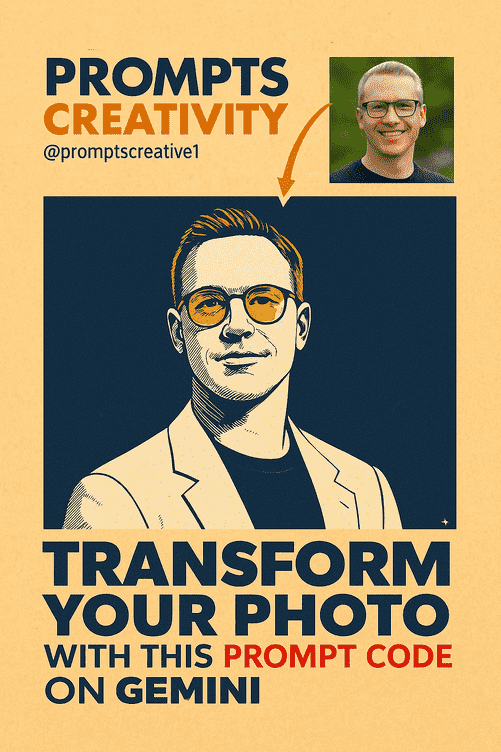
Pop Art meets AI! In this tutorial, you’ll learn how to transform a character-based image into a bold, dramatic Pop Art Vector Poster using strict artistic guidelines. We’ll walk you through:
- Preparing your base image
- Editing and setting up the visuals
- Writing and applying a detailed prompt
- Ensuring stylistic consistency across versions
- Creating a side-by-side “before and after” comparison
This guide uses text-to-image AI tools and is designed for both beginners and intermediate users working with AI-generated visuals.
📌 Final Stylization Prompt:
The first condition is that the original subject, proportions, and facial features must remain identical, do not change identity, anatomy, or pose, only apply the Pop Art Vector Poster artistic style with flat vector outlines and engraved cross-hatch shading, using ONLY this limited palette of dark blue, near-white (very light blue-white), pure white, and orange-yellow with 4 total colors, no other colors and no gradients unless specified; apply aged paper grain as texture substrate; use a solid dark blue background that is minimal and non-distracting; render the face in near-white tone to appear much lighter and distinct from clothing and background, keep the clothing pure white with orange-yellow accent; mood and lighting must be high-contrast dramatic; match the same line density, stroke width, palette, and shading method across different inputs; ensure the face remains visually distinct from both background and clothing; avoid text, watermarks, logos, extra objects, or anatomical distortions; keep edges crisp with no unwanted blur or noise. --ar 1:1 --seed 78654 --strength 0.35
🖼️ Step 1: Select and Prepare Your Starting Image
Start by picking a reference image featuring a fictional or illustrated character (not a real person). Here’s what makes a good base:
✅ Ideal Image Qualities:
- Character is clearly visible and facing forward
- Well-lit with strong contrast
- Background is plain or easy to remove
- Recognizable facial features and outfit details
Note: Avoid using photos of real individuals unless you have the proper rights. Instead, opt for AI-generated characters or royalty-free illustrations.
✏️ Step 2: Edit the Image and Update Design Elements
Before moving to stylization, do a few essential edits:
1. Simplify or Change the Background
Use tools like Photoshop, Canva, or Remove.bg to replace the background with a neutral one. A plain or minimal background works best for clean results in AI generation.
2. Swap Out Top Image (if Used)
If your design includes a header or secondary image, replace it with something more thematically aligned with your main subject.
🧠 Step 3: Generate a Character-Based Alternative (No Real Person Used)
Instead of keeping the original face or identity, create a fictional version that mirrors key elements:
✔️ Keep: pose, expression, hairstyle, general outfit style
✖️ Change: any resemblance to real people or celebrities
You can use AI platforms like MidJourney, DALL·E, or Leonardo.Ai to craft a custom character that fits your visual style without copying real identities.
📝 Step 4: Write a Stylization Prompt (Strict Pop Art Vector Style)
Craft a stylization prompt that gives consistent, polished results. This will ensure the character is transformed into a clean, pop art vector aesthetic across different inputs.
🧪 Step 5: Generate Stylized Output Using an AI Tool
Upload your cleaned character image to a compatible AI image generator that supports image-to-image styling.
- Use platforms like MidJourney (with modifiers like
--style) or DALL·E (with descriptive prompt injection) - Apply your stylization prompt
- Generate multiple variations to find the most suitable one


